
Picture this: you’ve just received your manuscript back from your copy editor, and when you open the document, it looks like it’s bleeding red ink. Every page seems covered in colorful strikethroughs, insertions, and mysterious comment bubbles in the margins. If you’re feeling a little overwhelmed—or maybe even defensive—you’re not alone.
Track changes can feel intimidating at first glance. But here’s the thing: those colorful edits aren’t criticisms—they’re your editor’s way of having a conversation with you about your work. Instead of receiving a mysterious “final” version where you can’t see what changed, track changes lets you see exactly what your editor is thinking and gives you the power to decide what works for your piece. In this post, we’ll demystify the track changes process so you can approach your edited manuscript with confidence instead of confusion. You’ll see track changes for what they really are: a powerful tool that helps you and your editor create the best possible version of your work.
Track Changes Basics: What You’re Looking At

When you first open a document with track changes enabled, it might look chaotic, but there’s actually a clear system at work. Let’s break down what you’re seeing so you can navigate with confidence.
The Main Types of Changes
Insertions appear as underlined text in a specific color (often blue or green). This is new text your editor has added—maybe a missing word, a transitional phrase, or a clarification.
Deletions show up as strikethrough text, usually in red. Your editor isn’t necessarily saying this content is bad; they might be suggesting a more concise way to say the same thing or removing redundancy.
Comments appear in bubbles or boxes in the margin. These are your editor’s questions, explanations, or suggestions that require your input rather than direct changes to the text.
Formatting changes might be less obvious but show up in the markup—things like changing italic text to regular.
Understanding the Color System
Each collaborator gets assigned a different color, so if you see blue insertions and red deletions, those all came from the same person (your editor). If you make changes and send the document back, your changes will appear in a different color. This makes it easy to track the conversation flow.
Two Views to Know
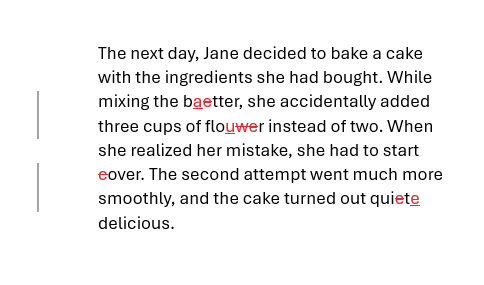
All Markup

Simple Markup
Most programs offer both “Simple Markup” (cleaner, shows the final result with a red line indicating changes were made) and “All Markup” (shows every single change in detail). You’ll probably want to work in All Markup mode so you can see exactly what your editor did.
The key thing to remember: nothing is permanent until you accept it. Think of this as your editor showing their work—you’re in control of what stays and what goes.
Reading Your Editor’s Work
Your copy editor isn’t just making random changes—there’s method to their markup. Understanding how to interpret their work will help you learn from the process and make better decisions about what to accept or reject.
Suggestions vs. Corrections
There’s an important distinction between changes that fix clear errors (like spelling mistakes or grammar issues) and changes that are suggestions for improvement. Understanding this difference helps you prioritize your review time and make better decisions about what to accept.
Corrections typically address objective issues: misspelled words, incorrect punctuation, subject-verb disagreement, or factual errors. These changes usually improve your writing without question, and most authors accept them readily.
Suggestions, on the other hand, involve judgment calls about style, word choice, sentence structure, or flow. These changes aren’t necessarily right or wrong—they’re your editor’s professional opinion about what would work better for your audience.
The tricky part is that both types might look identical in track changes. A deletion and insertion could be fixing a typo or suggesting a complete rewording. This is where your editor’s comments become crucial—they should clarify their reasoning, especially for larger suggestions. When comments explain “this word choice might confuse readers” or “this sentence structure is hard to follow,” you know you’re looking at a suggestion rather than a correction.
How to Respond to Changes

Now comes the part where you take control. You don’t have to accept every change your editor makes—this is still your work, and you get the final say.
How to Review Changes
Most programs give you options to accept or reject changes individually, accept all changes in the document, or work through them one-by-one. You can usually right-click on any change to see your options, or use the Review ribbon/menu to navigate systematically.
Start from the beginning and work your way through rather than jumping around randomly. This helps you see how changes connect to each other and maintain consistency in your decisions. Don’t be afraid to make multiple passes—you can accept obvious corrections first (like spelling mistakes), then tackle comments and larger suggestions that need more thought.
Remember: you don’t have to choose between your editor’s suggestion and your original text. You can reject their change and write something entirely different that incorporates their feedback.
Navigating Comments and Disagreements
The comment feature is where the real collaboration happens. This is your opportunity to ask questions, explain your thinking, and work through any concerns with your editor.
Reading Editor Comments
Comments usually fall into a few categories: questions that need answers, explanations for why they made certain changes, suggestions for larger revisions, or requests for clarification. Read each comment carefully—your editor is trying to help you communicate more effectively with your readers.
As you go through the comments, you’ll see an area where you can respond to them directly. Use this area to answer the questions or to ask some of your own. This way, if you have a call set up, or are sending the document back to your editor, you have the areas where you have concerns highlighted so they’re easy to find.
When You Disagree with a Change
Disagreement is normal and healthy in the editing process. Your editor wants you to push back when something doesn’t feel right. The key is explaining why you disagree. Maybe you have subject matter expertise your editor lacks, or maybe a change affects your brand voice in a way that doesn’t work for your audience.
Platform Tips
Track changes work differently in Word versus Google Docs versus other platforms. Word gives you more granular control and traditional copyediting features, while Google Docs makes real-time collaboration easier. Make sure you and your editor are both comfortable with whichever platform you choose before starting the process.
When sharing a document with tracked changes, make sure the recipient has the right permissions to see and respond to the changes. In Google Docs, this usually means “Can edit” or “Can suggest” permissions. In Word, save the document with track changes turned on and visible.
Use clear, descriptive filenames—you can label files with “TC” if it’s a track changes version, or “clean” if the track changes have been accepted. Don’t turn off track changes while you’re working unless you specifically want to make changes that your editor won’t see.
Conclusion
Working with track changes gets easier with practice, and the payoff is worth the initial learning curve. Remember that every colorful mark in your document represents your editor’s professional judgment about how to make your writing clearer, stronger, and more effective. You don’t have to accept every suggestion, but the goal is to work together effectively so the final product serves your readers well while still sounding authentically like you. Track changes makes that collaboration visible and manageable, turning what could be a mysterious black box process into a transparent conversation about your work.
Ready to experience this collaborative editing process firsthand? Check out my copy editing services to get started.


Leave a comment